Frequently Asked Questions (FAQ)
Common questions and answers about the EMBRACE-III Triplet Study.
Still stuck after trying these steps? We are here to help! Email the Study Office at embrace@meduniwien.ac.at.
How do I log in for the first time and activate my account?
Note: If you have already set up your account and just forgot your password, please skip to the Forgot password section below.
To set up your account for the very first time, please follow these steps in order:
- Find your Welcome Email: This email contains your username, a temporary password, and a direct link to your center's study database.
- Go to the Login Page: Click
the link provided in your welcome email.
If you need the login page without that email, use your study's link below for reference:
- Enter your Details: Type in the username and the temporary password exactly as they appear in the email.
- Set up your Security App: The
screen will show a square barcode (QR code). You will need to use a
smartphone app to scan this to secure your account. (
See the next question
for detailed steps on how to do this.)
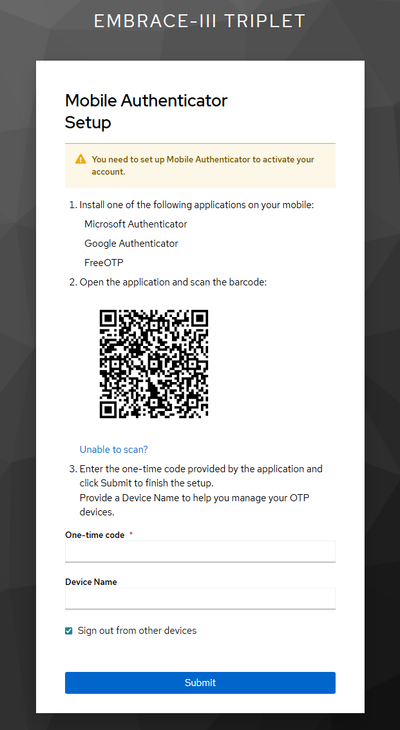
Example: security app (MFA) setup - Create a New Password: The system will now ask you to replace your temporary password with a permanent, private password.
- Complete your Profile: A
screen called "Update Account Information" will appear. Fill in your
first name, last name, and email address, then click submit.
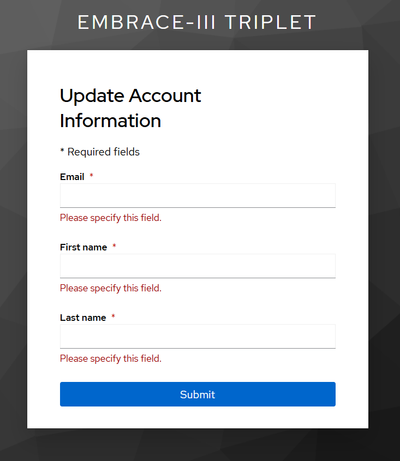
Example: Update Account Information - Verify your Email Address: We will send you one last email to confirm your address. Check your inbox (and spam folder) for this message and click the link inside. Your account is now fully active!

How do I set up my security app (Multi-Factor Authentication)?
Because this database holds sensitive clinical data, you must use a smartphone app to double-check your identity when you log in.
Your privacy is safe: The authenticator app does not have access to your personal files, photos, or messages. It is used exclusively to generate a temporary security code for our study database.
No internet required: The code on your app is generated locally on your phone. You can log in even if your phone has no cellular signal or Wi-Fi connection.
- Download an App: On your smartphone, open your app store and download a free app like "Microsoft Authenticator", "Google Authenticator", or "FreeOTP".
- Scan the Barcode: Open the app on your phone and look for a "+" button or an option to "Scan a QR code." Point your phone's camera at the square barcode shown on your computer screen.
- Enter the Code: Your phone app will now display a 6-digit number. Type this number into your computer screen and click "Submit".
Helpful Tips:
- You can type in a "Device Name" (like "My iPhone") to help you remember which phone you used.
- If your phone camera is broken, click the "Unable to scan?" link on your computer screen to set it up manually.

I forgot my password or need to change my details. What should I do?
- I forgot my password: Go to the study login page and click the "Forgot password" link. We will email you a link to create a new one.
- I didn't get my verification email: Please check your spam or junk folder and wait a few minutes. If it still hasn't arrived, email us at embrace@meduniwien.ac.at.
- I need to change my registered email address: If you need to use a different email address and cannot change it yourself inside the portal, please email the Study Office at embrace@meduniwien.ac.at and we will update your file.